
Best Free Fire Controls and HUD Settings for Better Performance (2026)
Winning the Free Fire match is not only about using powerful weapons. Your control settings have the biggest role in how quickly you react, change weapons, and make movements. A small change can change your gaming experience.
Free Fire includes several options to customize controls. These controls allow players to adjust the buttons according to their playing style. The right setting is important to make a good performance in short or long-range fights.
What Are Free Fire Control Settings?
Controls determine how your game responds, including firing, aiming, weapon switching, and interacting with the game. This setting controls how you perform different actions in the game.
Free Fire allows customization of options, including:
- Fire button
- Left Fire button
- Scope button
- Weapon switch button
- Reload button
- Pickup button
Why Control Settings Matter
The default settings work well for new players as they start with the default settings. But customizing the controls according to preference improves gameplay.
Customizing controls make gameplay smoother, but technical issues affect your experience. If Truxenon FF fails to open or load, read our guide on Truxenon FF Not Working for troubleshooting tips.
Some of the benefits of using proper settings:
- Faster weapon switching
- Better aim control
- Efficient looting
- Quick reactions
Best Free Fire Control Settings (2026)
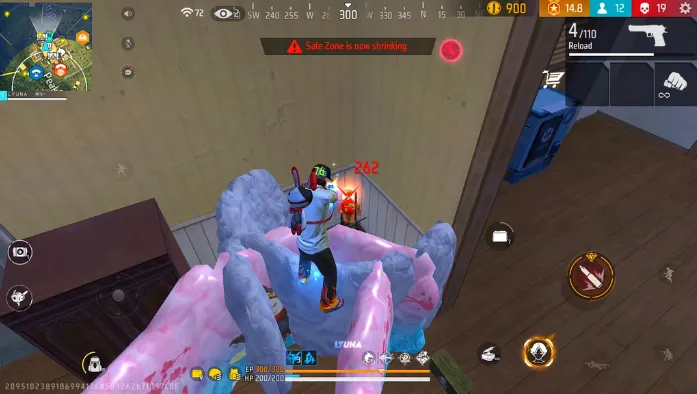
The following settings provide a balanced setup for most Android devices and are suitable for beginners as well as experienced players.
Setting
Recommended Option
Why It Works
Aim Precision
Default
Balanced aiming
Left Fire Button
Always On
Improves shooting during movements
Quick Weapon Switch
On
Switch weapons instantly
Auto Pickup
On
Speeds up looting
Hold Fire to Scope
Off
Gives better manual control
Reload Progress
On
Shows reload status.
Visual Effects
Low or Medium
Improves visibility and maintains smooth gameplay.
These settings provide a balance between comfort and performance. If your gameplay still feels slow or inconsistent, you should also learn how to increase FPS in Free Fire for a smoother experience.
Best HUD Layout for Free Fire
Your HUD (Heads Up Display) determines where buttons like fire, crouch, sprint, weapons controls, etc. appear on the screen. An organized HUD makes it easier to respond during the game, and it also avoids unnecessary actions.
A single customized HUB cannot work for everyone. This setup depends upon your grip, your screen size, and your playing style. The main goal is to keep important buttons easy to reach during the battles.
HUD Layout for Beginners
If you are new to Free Fire, keep your HUD clean and comfortable. Avoid adding many buttons or making changes.
Recommended :
Keep the fire button large for easy firing
Place the sprint button in easy reach
Keep jump and crouch buttons closer
Practice with one layout before changing it
Remember, a clean and natural layout helps beginners to make their muscle memory fast.
HUD Layout for Two-Thumb Players
Most Free Fire players use two thumbs because it is simple and easy to use.
For better control:
Use the left thumb for movement
Use the right thumb for aiming, shooting, and camera movement
Place your weapon switch button near your right thumb
This layout provides a balance between comfort and performance for competitive players.
HUD Layout for Claw Players
Claw players use three or four fingers during gameplay that allow them to perform multiple actions. This layout is popular among experienced players as it improves reaction time.
A common claw setup includes:
Movement with the left thumb
Fire with the left index finger
Right thumb for aiming and camera control
Right index finger for jump, crouch, or weapon switching
Claw layout is tricky for beginners, but it helps to perform different actions at the same time.
Best Control Settings by Player Type
Each player has their own playing style, so the control setting matches how you play the game.
Best Control Settings for Beginners
If you are new to Free Fire and learning the basics, you need to focus on comfortable gameplay, not on advanced techniques.
Recommended settings:
Aim Precision: Default
Left Fire Button: Always On
Quick weapon switch: On
Auto pickup: On
Hold Fire to Scope: Off
These settings are easy to use and help beginners to learn game mechanics easily without any complexity.
Best Control Settings for Aggressive Players
Aggressive players are those who prefer to rush, take fights, and maintain pressure throughout the match, for such players.
Recommended settings:
Enable Quick Weapon Switch
Keep the Left Fire Button turned on
Use a simple and clean HUD
Place jump and crouch buttons close to firing controls
These adjustments help fast players to react quickly and make a better response during close-range fights.
Best Control Settings for Defensive Players
Defensive players prefer calm and strategic gameplay. They use different strategies during the match to win, for those players.
Recommended settings:
Aim Precision: Default or precise on scope
Keep Reload progress enabled
Organize healing buttons for quick access
Use a clean and comfortable HUD to avoid accidental responses
A well-organized layout helps players to focus on aiming and decision making that make their gaming experience better.
How to Customize Your Free Fire Controls
Free Fire allows players to customize all buttons according to their own style, that give comfortable gameplay. Well-organized matters a lot to improve game performance.
To customize your controls, follow the following steps:
- Open the game and tap on the settings icon
- Select the control tab
- Tap custom
- Drag buttons according to your preference
- Resize the important buttons
Save your layout and test in the training ground. Make some adjustment that feels comfortable and avoid making major changes at a time. After adjusting your control layout, you also fine-tune your sensitivity settings to make aiming feel more comfortable. Our FF Sensitivity Generator help you find starting values to test on your device.
Common Control Setting Mistakes
Even the best settings do not improve your gameplay if your layout is uncomfortable. By avoiding these mistakes, you can get better results.
Copying other players Hud exactly
Different players use custom layouts according to their device and playing style. Copying the other player’s style does not give better results.
Changing layout frequently
Constantly moving buttons makes it difficult to build muscle memory. If your controls feel unresponsive, the issue may be device performance. In that case, follow these tips to fix lag in Free Fire before making further control adjustments.
Placing Buttons Too Close
Close buttons cause accidental and unnecessary taps during fights. Leave space between buttons for smooth gameplay.
Ignoring Screen Size
For the best layout, do not ignore the screen size because on small phones, larger buttons decrease visibility. Place your buttons according to your device screen and finger reach.
Frequently Asked Questionss
Conclusion
The best Free Fire controls provide you with comfortable gameplay and help you to react quickly during the match. A well-organized HUD and the right controls improve aiming, movement, and overall performance.
You should start with the recommended settings and then make customizations according to your choice. You can also optimize your overall gameplay with TruxenonFF APK, which helps improve your gaming experience alongside the right control settings.