
FF Sensitivity generator
01 / Device setup
Tell us a little about your phone and how you play.
02 / Your sensitivity
Ready to testUse these as a starting point, not guaranteed best settings.
Finding the right sensitivity settings in Free Fire helps you improve aiming control and make drag shots feel more comfortable. Our FF Sensitivity Generator helps you to find suitable starting values based on your device and playing style. You also learn more about gameplay performance and other ways to improve your gaming experience.
Generate your recommended settings, test them in the game, and make small adjustments to find a setup that feels right for you.
How to Use the FF Sensitivity Generator
Using a sensitivity generator can make it easier to find a starting configuration without manually experimenting with every value. Follow these steps to get started:
- Open the sensitivity generator above.
- Select your device or enter the requested information, if those options are available.
- Click the Generate button to view your recommended settings.
- Note down or copy the generated values if the tool supports copying.
- Open Free Fire and test the settings in the training area.
- Make small adjustments until the controls feel comfortable.
The recommendations should be treated as a starting point rather than perfect settings for every player. Your screen size, touch response, frame rate, and aiming habits can all affect how sensitivity feels.
Best FF Sensitivity Settings for Headshots
Sensitivity affects crosshair movement and aiming speed. Higher General and Red Dot values help with faster aiming, but adjust them carefully to maintain accuracy and control.
Here are the recommended sensitivity settings to help you get started:
Sensitivity Option | Suggested Range |
General | 185–195 |
Red Dot | 175–190 |
2X Scope | 160–175 |
4X Scope | 145–165 |
Sniper Scope | 80–100 |
Free Look | 120–145 |
If you want to improve your aim, check out our guide to FF headshot settings for Android for more tips on adjusting sensitivity and landing more accurate shots.
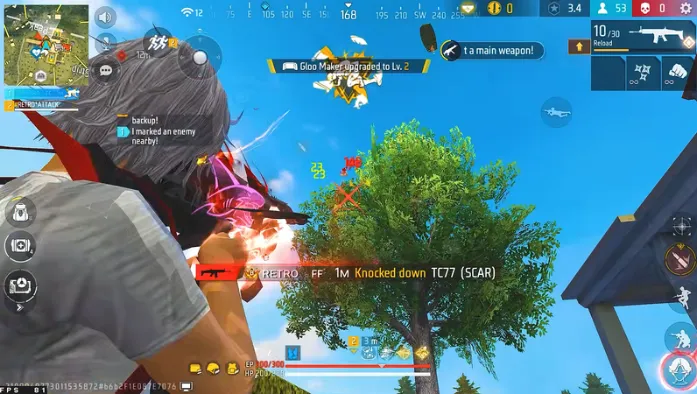
Why Use a Free Fire Sensitivity Generator?
A Free Fire Sensitivity Generator saves time by providing starting settings for your gameplay. It helps you customize your sensitivity and find values that feel comfortable for your device.
Here are the main benefits of using this tool:
Quick recommendations:
Start with suggested values instead of testing every setting from scratch.
Easy customization:
Adjust individual values based on your aiming comfort.
Convenient reference:
Keep your preferred settings together for easier access.
Consistent practice:
Spend more time learning your controls instead of constantly changing them.
The generator does not replace practice or guarantee better performance. Its purpose is to help you find a setup that feels suitable for your gameplay.
How Device Performance Affects Sensitivity
- Device Performance: Stable frame rates and responsive touch controls can make aiming feel smoother, while lag and input delays can affect crosshair control.
- Screen and Graphics Settings: Screen size, graphics quality, and device responsiveness can influence how sensitivity feels during gameplay.
- Optimize Your Phone: Choose graphics settings your device can handle comfortably and close unnecessary background apps when needed.
- Adjust Settings Gradually: Change one setting at a time so you can identify which adjustments improve your aiming experience.
- Troubleshoot TruxenonFF: If you encounter issues with the tool, read our guide on TruxenonFF not working for possible causes and troubleshooting tips.
Best Free Fire Controls and HUD Settings
- Understand Your HUD: Your layout controls the placement of the fire button, movement joystick, scope controls, and other on-screen buttons.
- Choose a Comfortable Layout: Arrange buttons according to your screen size and hand position to make aiming and movement easier.
- Adjust the Fire Button: If you use drag shots, position the fire button where you swipe upward comfortably.
- Test Your Controls: Practice in the training area and adjust button size and placement gradually before playing ranked matches.
- Improve Your Setup: Check our guide to the best Free Fire controls and HUD settings for more tips on creating a layout that suits your playing style.
Tips for Improving Headshot Accuracy
Improving headshot accuracy requires the right settings and regular practice. Follow these simple tips to improve your aim and control in Free Fire:
Here are some tips to help you land more accurate headshots:
Practice Controlled Drag Shots
Use short, controlled upward swipes instead of dragging your finger too far. Practice with different weapons and distances to learn how much movement works best for your aim.
Keep Your Crosshair at a Useful Height
Try to keep your crosshair near the upper body when approaching opponents. This can reduce the distance you need to move your aim when attempting a headshot.
Adjust Sensitivity Gradually
If your crosshair repeatedly moves above the target, lower the relevant sensitivity slightly. If it feels difficult to move your aim upward, try a small increase. Test each adjustment before making another change.
Use a Comfortable Fire Button
Your fire button should be easy to reach without interrupting movement or aiming. Experiment with its position and size to find a layout that feels natural on your screen.
Practice Consistently
Spend time in the training area before ranked matches. Consistent practice helps you understand your sensitivity and develop more predictable aiming movements.
Common Sensitivity Generator Problems
Sometimes, sensitivity settings may not work as expected due to device performance or incorrect adjustments. Here are some common problems and simple ways to troubleshoot them.
The Generated Settings Do Not Feel Right
Generated values are starting recommendations, not universal settings. Your device, control layout, and aiming technique may require different values. Make small changes and test them over several practice rounds.
My Aim Feels Too Fast or Too Slow
If your crosshair moves beyond the target, reduce the relevant sensitivity. If aiming feels slow, increase it gradually. Avoid making large changes to every sensitivity option at the same time.
The Generator Is Not Working
If the tool does not load or generate results, refresh the page and check your internet connection. If the problem continues, check whether your browser is blocking required page functionality. If the issue relates to TruxenonFF itself, consult the relevant troubleshooting guide.
Frequently Asked Questions
Conclusion
The FF Sensitivity Generator helps you find suitable starting settings for your device and playing style. Test the values in Training Mode and adjust them until aiming feels comfortable. Combine the right sensitivity, HUD layout, and regular practice to improve your control and headshot accuracy.